When to Use This #
- You have a non-Google email address you want to use for Google Workspace services. Most commonly, Google Drive for document sharing and collaboration.
- You have an Outlook (Microsoft 365 based) account and want to use it for Google Analytics, Google Tag Manager, Google Ads or any other Google service.
- You never ever want to see another email that looks like this: [email protected] 😃
Introduction #
When creating a Google Workspace account, you can enable any email address as your primary address instead of using the default “@gmail.com” domain. This article provides a step-by-step guide on how to register a Google Workspace account with your preferred email address via the accounts.google.com platform.
Video Tutorial #
Apologies for the choppy sound! 👂🎧
Here are the steps to enable any email address as a Google Workspace address during registration.
Animated GIFs Tell a Story #
Feel free to follow along below.
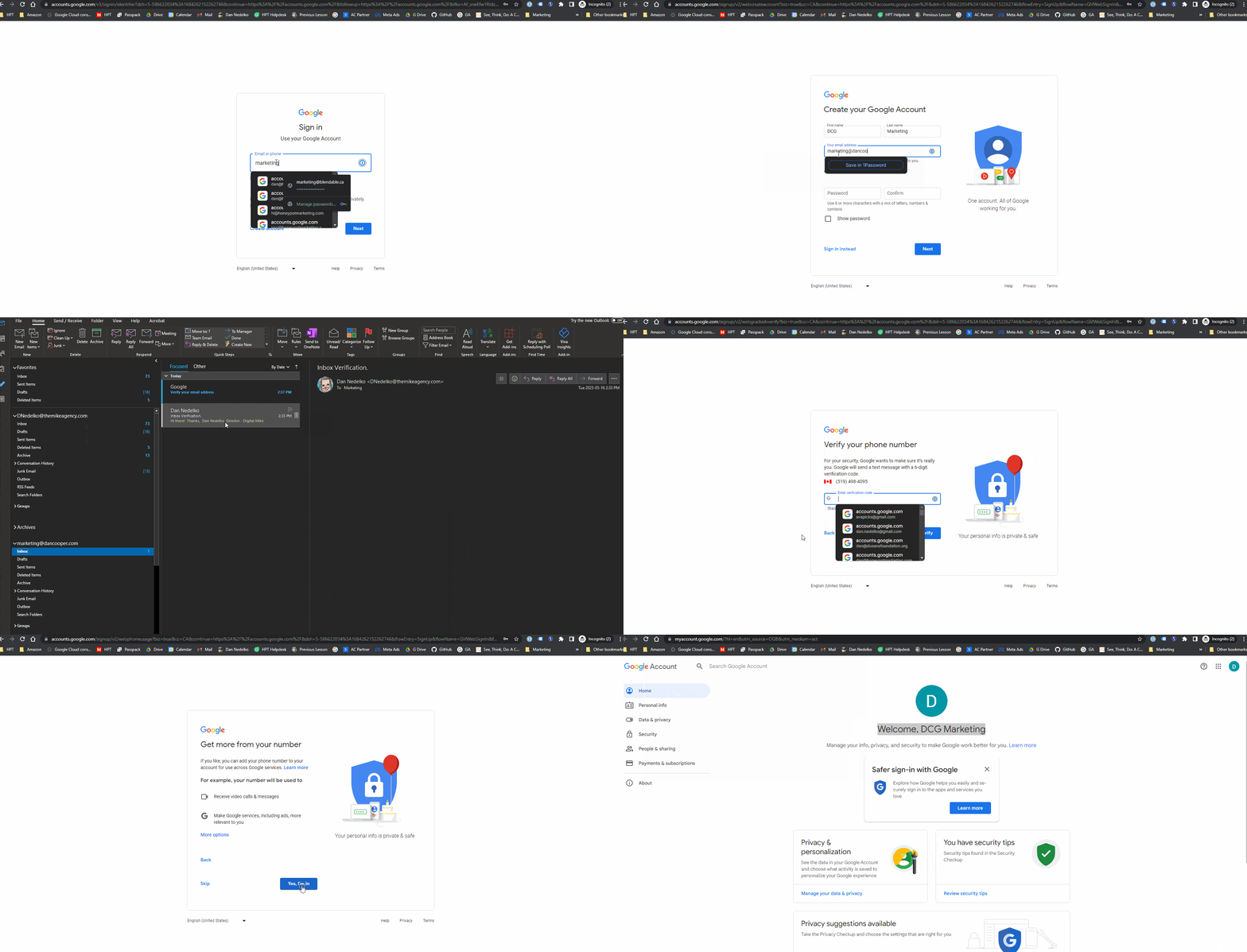
Access the Google Workspace registration page #
- Open a web browser and navigate to accounts.google.com.
- Click on the “Create account” or “Use another account” option to start the registration process.
Begin the account creation process #
- Choose the “For myself” option unless you are creating an account for a business or organization.
- Fill in your first and last name in the respective fields.
- Click “Next” to proceed.
Choose your preferred email address #
- On the “Choose your username” screen, click on “I prefer to use my current email address” option.
- Enter the email address you want to use as your Google Workspace address.
- Click “Next” to continue.
Create a password #
- Enter a strong password for your Google Workspace account.
- Make sure the password meets the specified requirements (e.g., length, complexity).
- Click “Next” to proceed.
Provide additional details #
- Fill in your phone number in the respective field.
- Add your date of birth and gender.
- Optionally, provide a recovery email address for account recovery purposes.
- Click “Next” to continue.
Review and accept the terms #
- Read and review the Google Terms of Service and Privacy Policy.
- If you agree to the terms, check the box stating that you agree.
- Click “Next” to proceed.
Complete the registration #
- Follow any additional prompts or verification steps, such as phone number verification or CAPTCHA.
- If necessary, complete the account recovery options setup.
- Click “Next” or “Continue” to finalize the registration process.
Enabling any email address as a Google Workspace address during the registration process allows you to use your preferred email identity for your Google Workspace account.
By following the steps outlined in this article when registering via accounts.google.com, you can set up your Google Workspace account with your desired email address, providing you with a personalized and professional email identity for your business or personal needs.


